Work with Your Mosaic Environment through AI Agents
AI agents such as Claude, ChatGPT, Claude Code and Codex can work with your Mosaic environment for you. You describe what you want in plain language, and the agent queries and changes the data of your managed and custom services through their GraphQL APIs, as you, with only the permissions you grant it.
This guide connects Claude to an environment and walks through a task that would take many steps in the Management System: curating, localizing and publishing a themed movie collection.
You will:
- Allow Claude to connect to your environment.
- Connect Claude to the Mosaic MCP Server of the environment.
- Sign in and grant Claude a set of permissions.
- Let Claude find movies, fill gaps in their metadata, create a collection, translate it and publish it.
- Review the result in the Management System.
Before You Start
You need:
- An environment with the Media Service of the Mosaic Media Template, or any custom service with a GraphQL API. The example uses movies and collections; the same approach works with any data.
- A management user in the environment with permissions for the services you want Claude to use.
Adding Claude as an OAuth client also needs the Identity Service permission
OAUTH_CLIENTS_EDIT, or someone who has it. - Claude on the web or Claude Desktop. Claude Code works as well.
Step 1: Allow Claude to Connect
Applications can only connect to an environment after they are added as OAuth clients of the environment.
- Open the Management System of your environment.
- Go to Settings > Access Management > OAuth Clients and click + (New).
- Select Claude as the Application and click Proceed.
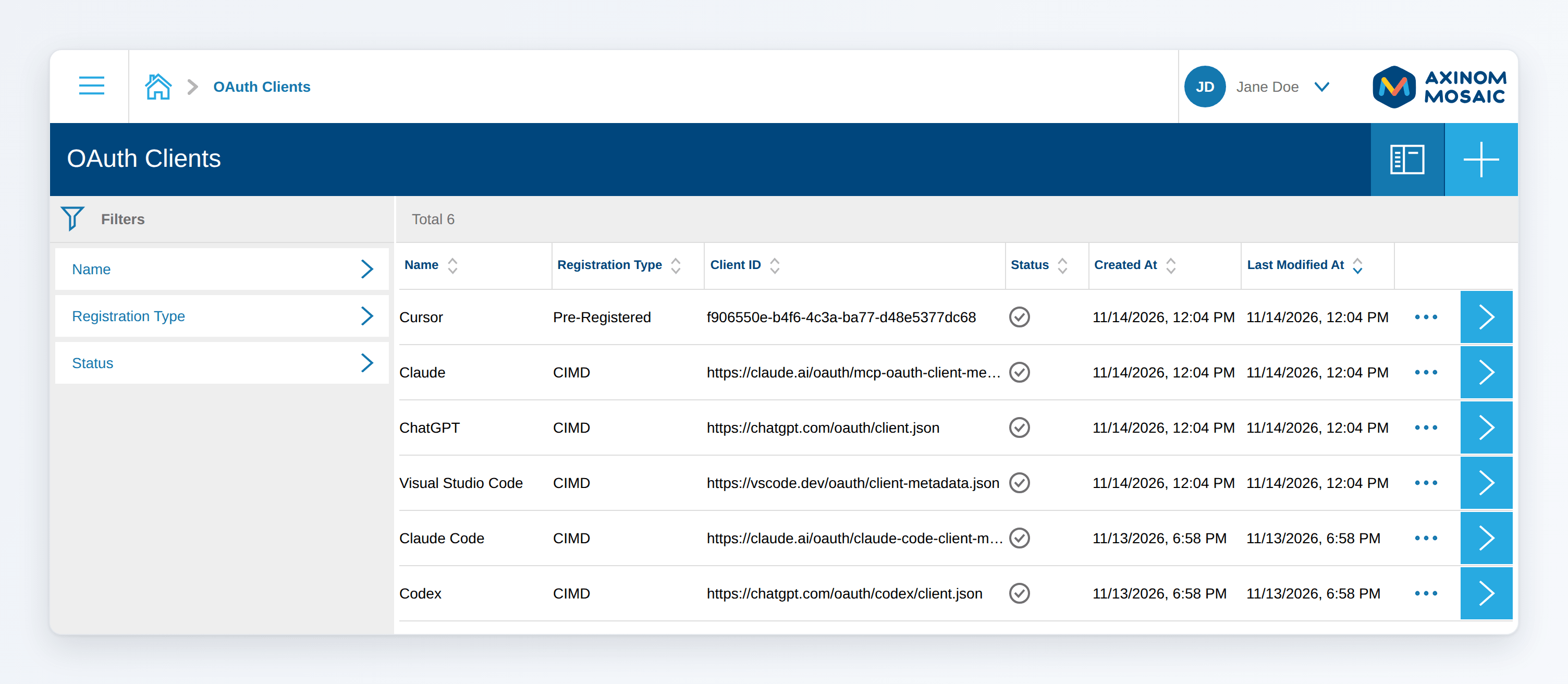
Claude identifies itself with a Client ID Metadata Document, so nothing else needs to be set up. See Manage OAuth Clients for other applications.
Step 2: Connect Claude to the MCP Server
The MCP server URL of your environment is:
https://mcp.service.eu.axinom.net/<tenant-id>/<environment-id>
You find the tenant ID and environment ID in the Admin Portal, on the details page of the environment.
In Claude:
- Open Settings > Connectors and click Add custom connector.
- Enter
Mosaicas the name and the MCP server URL. - Click Add, then Connect.
Step 3: Sign In and Grant Permissions
Claude opens the sign-in of your environment in the browser.
- Sign in with one of the identity providers of the environment, the same way as to the Management System.
- Select the permissions Claude gets. For this guide, select the Media, Image and Localization services.
- Click Allow.
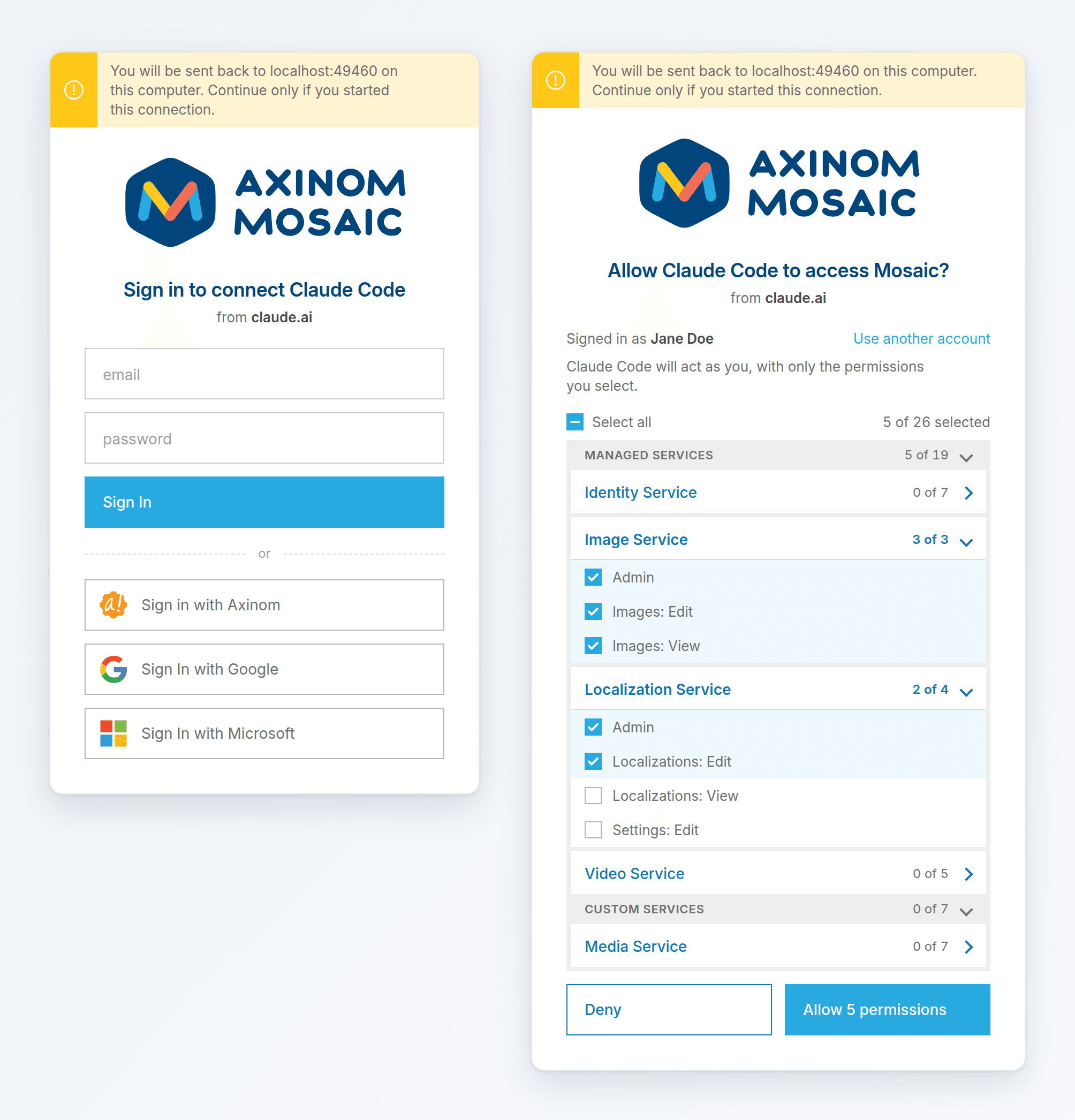
Claude can now do what these permissions allow, and nothing more. It never sees your password, and you can revoke its access at any time.
Step 4: Explore What Claude Can Do
Start a new chat and ask:
Claude lists the services you granted it, with your permissions for each, and explores their GraphQL schemas to learn what they offer.
Step 5: Curate a Themed Collection
Now give Claude a real task. Each prompt builds on the previous answer, and Claude asks before it changes anything.
Find the movies
Claude queries the Media Service and shows which movies still have gaps.
Fill the gaps
Create the collection
Claude creates the collection in the Media Service, uploads the image to the Image Service from the URL and assigns it as the cover.
Localize it
Claude saves the translations in the Localization Service.
Publish it
Claude publishes them and reports any validation errors, for example a movie without a license, so you can fix them.
Step 6: Review the Result
Open the collection in the Management System.
Everything Claude changed shows you and Claude as the editor, for example Jane Doe (via Claude) under Last Modified, so changes made through an agent are always traceable.
More Ideas
Once connected, Claude can help with tasks that have no dedicated screen in the Management System, or that would take many clicks:
- Quality checks: "Which published movies have no German title?" or "List episodes without a teaser image."
- Rights management: "Which licenses end in the next 30 days, and which movies and episodes do they affect?"
- Bulk updates: "Add the tag 'holiday' to all movies with 'Christmas' in the title."
- Ingest: "Create an ingest document for these five movies from the attached spreadsheet and start the ingest."
- Access reviews: "Which users have the Administrator role, and which roles can publish content?"
Use Claude Code Instead
To connect Claude Code instead of Claude, add Claude Code as an OAuth client in Step 1, then run:
claude mcp add --transport http mosaic https://mcp.service.eu.axinom.net/<tenant-id>/<environment-id>
Run /mcp in Claude Code, select mosaic and Authenticate.
The Mosaic MCP Server page shows how to connect Codex, Visual Studio Code and other agents.
Good Practices
- Grant only what the task needs. You can connect the same agent more than once with different permissions, for example a read-only connection for reports and one with edit permissions for changes.
- Review before you confirm. Ask the agent to show what it will change before it saves, especially for bulk changes and publishing.
- Revoke access you no longer need. Disable or delete the OAuth client to stop all its connections within 10 minutes.